How to Effectively Manage Your Documents with FossLook
The Current State of Things So, How FossLook Can Help Me? Summary
Effective document management plays a huge role in organization of the working process. As number of content employees grows, the need for streamlined, refined document management is becoming more apparent.
The purpose of this article is to show an example of how you can use FossLook in your company. Now, of course everything that is described below may not be the case for everyone without exception, but at least someone, who regularly deals with lots of documents, might find it useful. I hope that after reading this article you'll look at your daily routine, analyze it and implement some tactics and strategies to automate it with FossLook.
The Current State of Things
Many organizations have to deal with a lot of documents every day. The question of managing them becomes more important as the company grows. Here are only some of the problems that almost any organization with no document management system in place deals with:
Storing Files on Disk
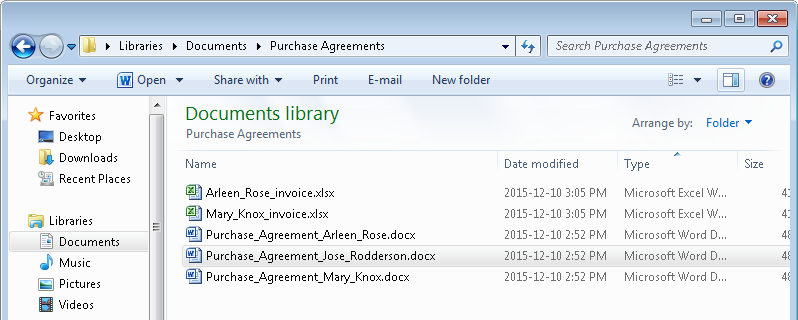
In most cases documents are often stored on the file system of the computer. Sometimes companies may have a dedicated server where employees can store their files. The main complications of this approach are: creating a folder structure for documents; naming the files correctly; convenient file search with additional search criteria; setting up user permissions; linking documents together; versions support; dealing with duplicate files.
The list goes on and on, but everything mentioned above is already creates enough troubles for the collaborative work of your employees. So, following this way of doing things, you really can create such an unwieldy file structure and get yourself a lot of headache.
Storing the List of the Documents in Excel
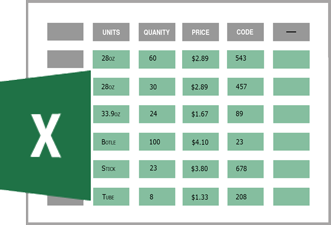
Quite often people use Microsoft Office or similar software to keep track of their documents. For example, they create Excel tables that describe the structure of the storied files and some attributes of the documents stored in these files. The result may look somewhat like this:
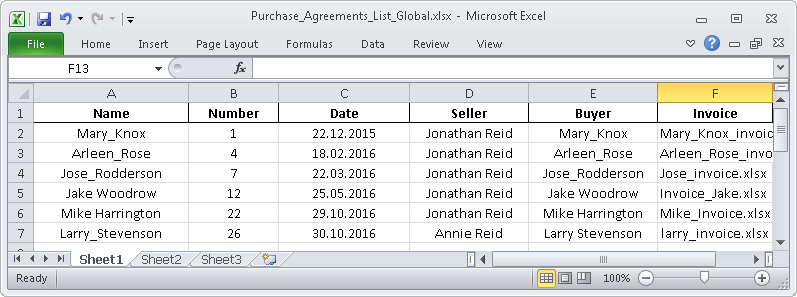
In this case, undoubtedly, you may ask yourself a couple of interesting questions: what to do if some of the files related to each other? how to collaborate on Excel spreadsheets? how to formalize a field in a table? how to avoid mistakes with file names and descriptions? spreadsheet does not reflect document changes
It's quite possible that you've encountered another problems in addition to the ones listed above.
Difficulties in Collaboration
It is virtually impossible to implement collaboration between users if you work in this mode. The most common solution here is to send the document via email. But this doesn't give you the ability to control it's versions in one place, check the status, manage access levels and control many other parameters.
So, How FossLook Can Help Me?
All right, let's try to implement a bit more progressive strategy and use FossLook as our document management system.
Creating a Document Database
Once you create your document libraries, document types and assign the appropriate access rights to the folders, you can get a structure like this:
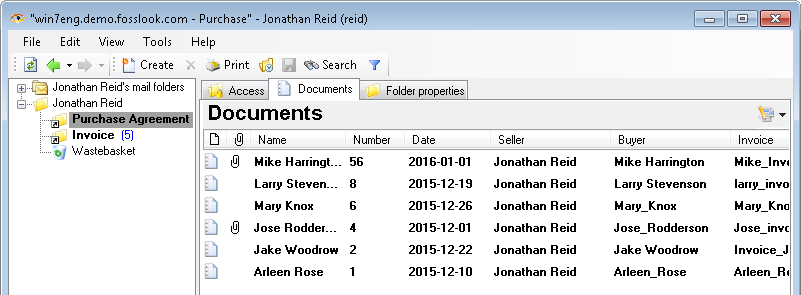
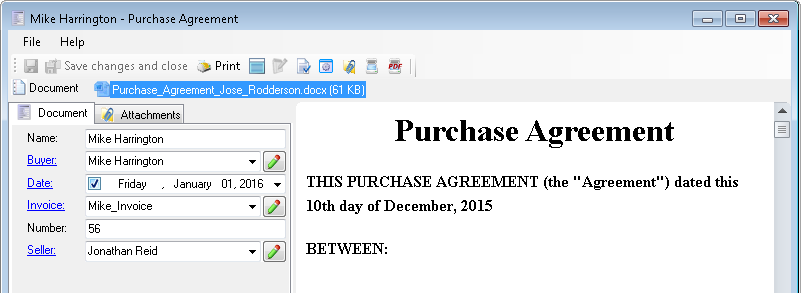
Now you don't need to think about how to create folders, how to name files, and many other things. The system will take care of it. Electronic document card stores the actual file with the text of the document and contains all the fields describing it.
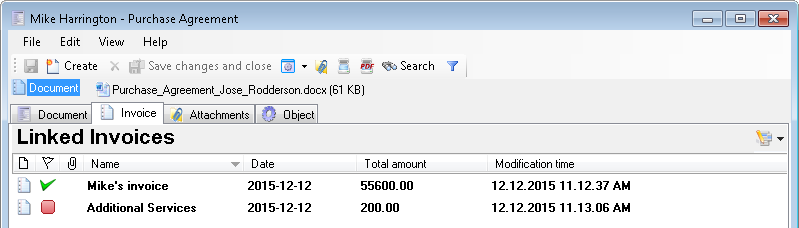
Now, you will be able to link related documents together. It's much easier to work with them in that way. If you need some additional information, you can get it right away. For example, in our case we can link an invoice to our agreement.
Managing Access Rights
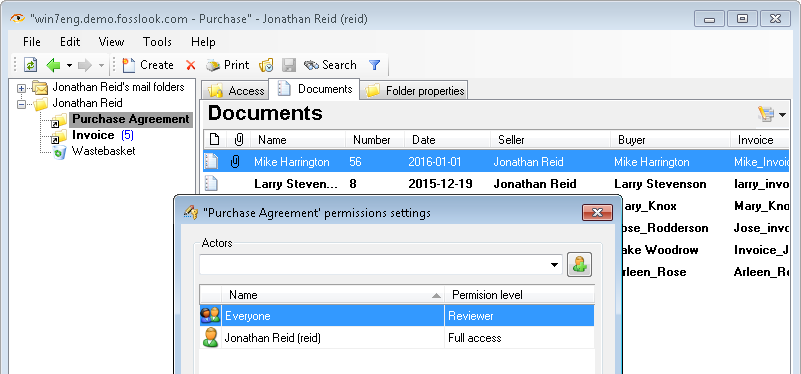
By assigning the appropriate access levels and permissions for folders and documents you can easily manage your data. This function of the system really shines when you have people with different roles in your company. Someone might need only read access to files and another person need to actually work on documents, modify and edit them.
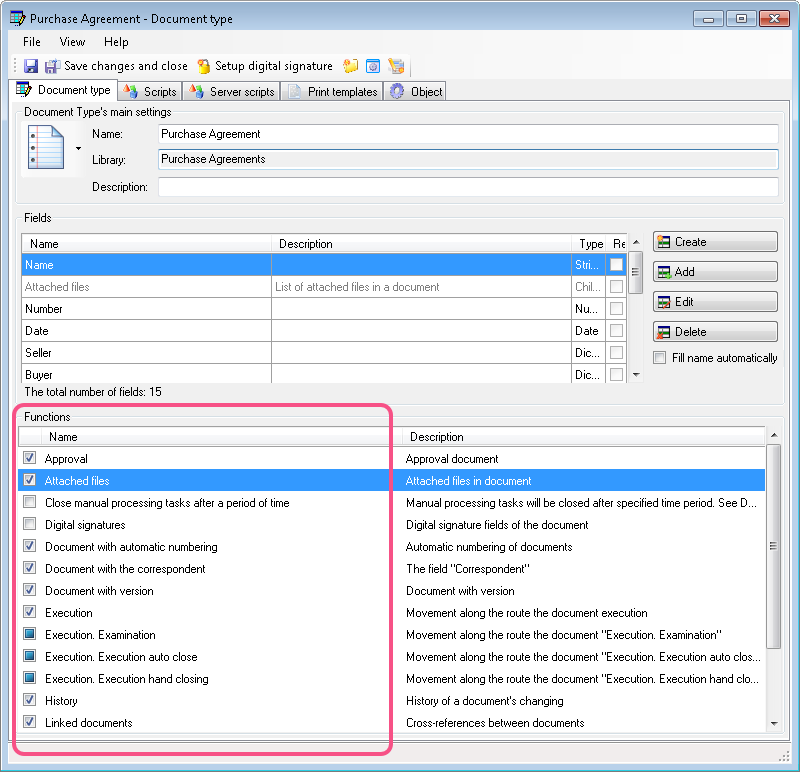
The document itself can have a very impressive list of functions shown in the figure below. The names of the functions are pretty self-explanatory. For example, if you need to be reminded about something concerning the document, just select the "Recurring tasks" function from the list. Want to attach files? Easy, just select "Attached files" function and you'll be able to do it after restarting FossLook client.
You can find more information about document card and it's functions in our "Document card description" article.
Workflows
The concept of "Document Management" also assumes the ability to transfer a document from one user to another with the fixation of all actions performed by the user. FossLook allows users to collaborate on documents using workflows.
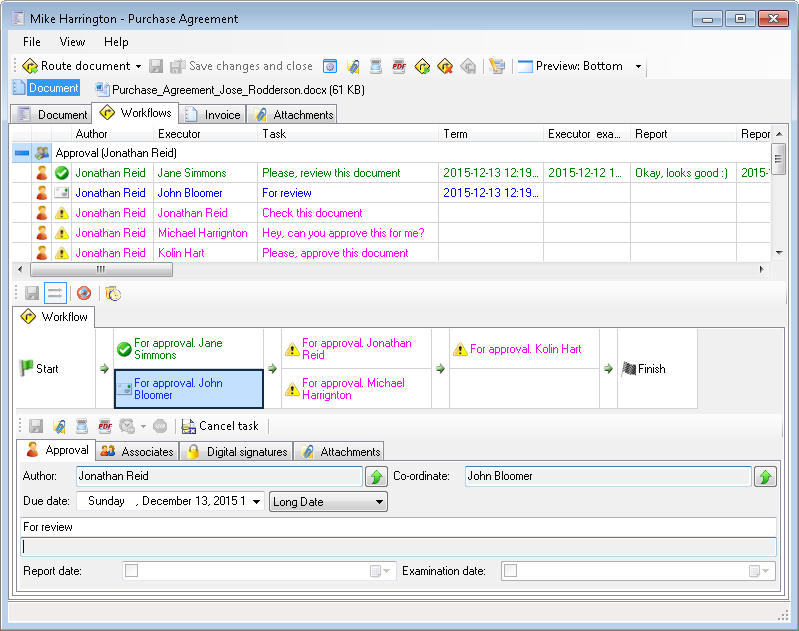
When document moves along the pre-defined route, the system records all actions performed on it by other users. In that way you can get an eagle-eye view of the whole process and manage the entire workflow more effectively.
Summary
This article shows only a tiny part of FossLook functionality. If you want to know more about the system, you can check out the rest of the articles on our site.
We believe that implementing the proper document management strategy in your organization can hugely benefit your working process.
After installing and setting up FossLook you'll be able to easily manage the information flow in your company.
Finding This Article Useful?
You can read more articles like this and get other interesting information on our blog page. Happy reading! Read More
 of FossLook!
Related articles
- How to Automate Your HR Department with FossLook
- Customer Management with FossLook
- Using Fosslook as a Database for Sociology Studies
- How to Use Document Assembly in Word and FossLook
- Custom Business Solutions
- How to Manage Student Group Timetable with FossLook
- Creating business application
- Defining solution boundaries for business applications
- Configuring access to folder
- Configuring access to folders
- Creating basic document type named “Marketing document”
- Creating of a document type
- Creating “Correspondents and contacts” warehouse
- Creating “Marketing documents” warehouse
- Creating of a documents library
- Customizing folder’s view
- Document fields
- Document functions
- Preparation of the document's route pattern
- Preparation of the route
- Testing the route
- Testing the solution
- Customizing folder’s view
- Using the mechanism of “Inherited document types”
- Using the mechanism of adding fields