Configuring access to folder
Not all users should have possibility to change contractor data. This is why we should configure access to “Correspondents” folder.
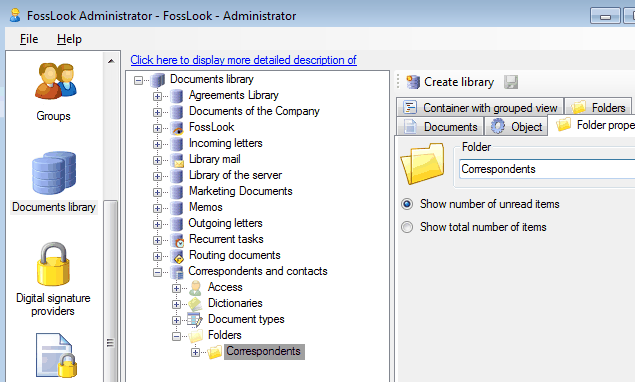
Select “Access” tab and cancel access rights inheritance from parent object.

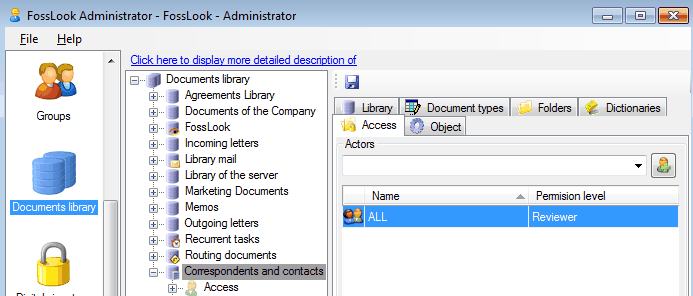
We assume that all users will see a list of Correspondents with “Read” permission level. It means that they can view information but they can’t make any changes.
To do this click
 and add “Everyone” group with “Read” permission level.
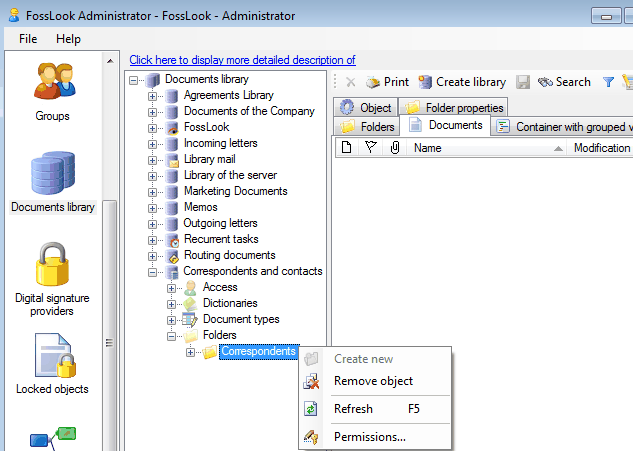
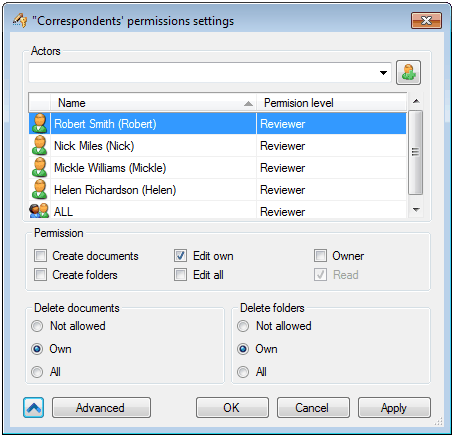
Let’s grant Full access to the folder for user John Smith (Common Department employee, the clerk). For user Nick Miles (Marketing Department employee, the Expert in Marketing) let’s grant permissions Create documents, Edit own and Delete own. To do this place cursor on folder “Correspondents”, right click and select “Permissions”.
Result should looks as shown below:
We made a first part of creating a business application task. Now we have warehouse where we will keep information about our Correspondents.
Creating “Marketing documents” warehouse
Related articles
- How to Automate Your HR Department with FossDoc
- Customer Management with FossDoc
- Using FossDoc as a Database for Sociology Studies
- How to Use Document Assembly in Word and FossDoc
- Custom Business Solutions
- How to Manage Student Group Timetable with FossDoc
- Creating business application
- Defining solution boundaries for business applications
- Configuring access to folders
- Creating basic document type named “Marketing document”
- Creating of a document type
- Creating “Correspondents and contacts” warehouse
- Creating “Marketing documents” warehouse
- Creating of a documents library
- Customizing folder’s view
- Document fields
- Document functions
- Preparation of the document's route pattern
- Preparation of the route
- Testing the route
- Testing the solution
- Customizing folder’s view
- Using the mechanism of “Inherited document types”
- Using the mechanism of adding fields