Creating Reports Using FossDoc Groupings

- General description
- Creating groupings
- Exporting groupings "Creating a simple and effective reports in your daily work will benefit your organization, both internally and externally. It can help streamlining processes, reducing costs and improving efficiency of your business."
General Description
Grouping mechanism is used in FossDoc to create reports. It allows you to group documents in particular folder. You can group documents by any field, with unlimited levels of nesting. The result of grouping is displayed in form of a report, which then can be exported to Excel.
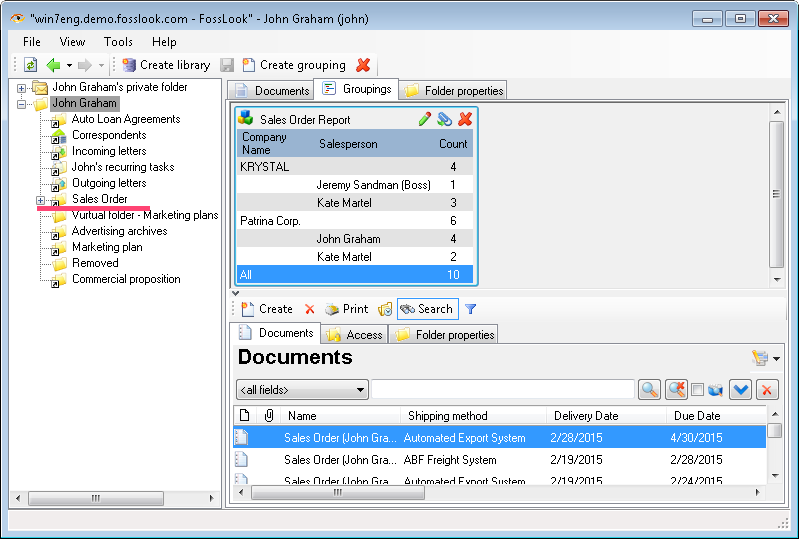
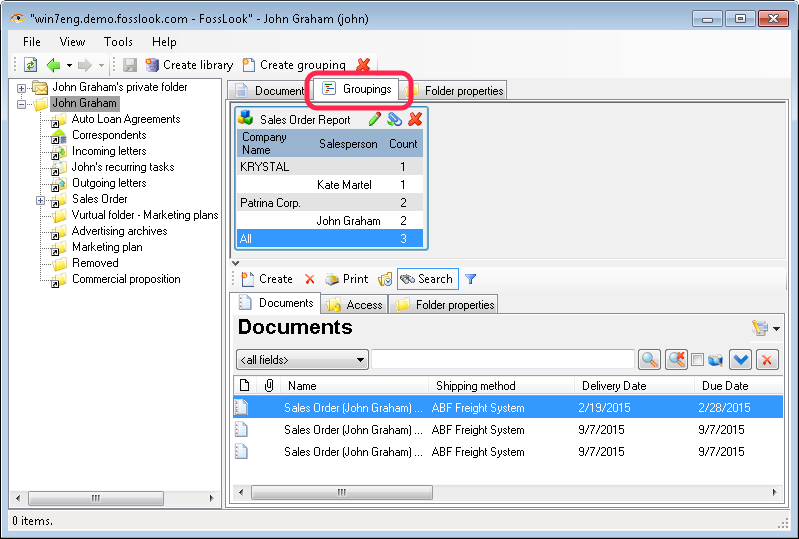
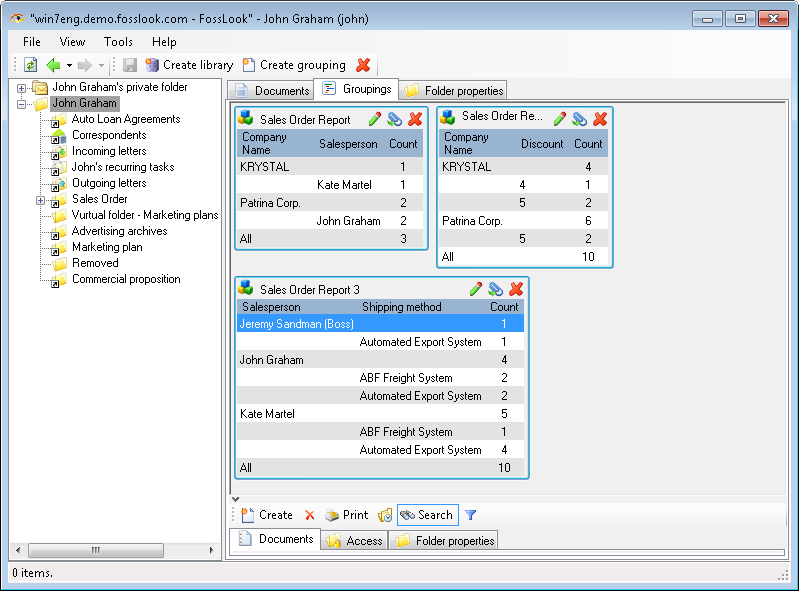
The screenshot below shows a grouping called "Sales order report", created from the "Sales order" documents. Documents initially are grouped by "Company name" field and then by "Salesperson" field.
By clicking on the corresponding group, you can see the documents grouped by a specified condition.
Creating Groupings
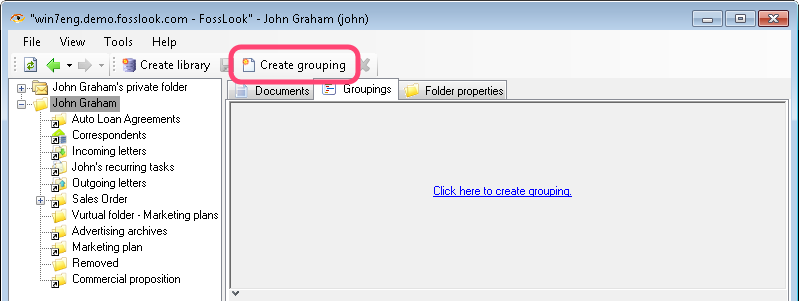
You can create groupings in the root directory of the user folders, or in the root directory of the mail folders. To create a new grouping, click "Create grouping" button.
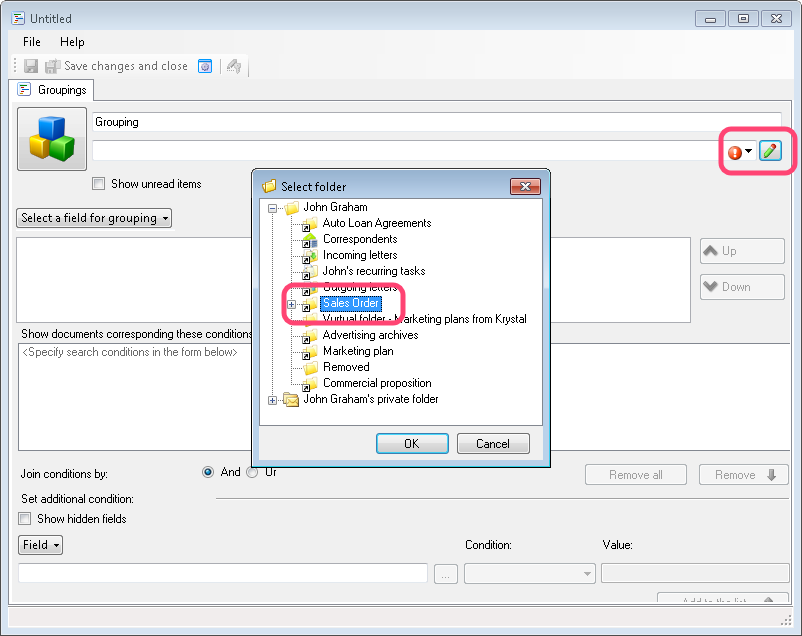
Enter the name of the grouping and select a folder, based on which you wish to create a grouping.
Note: Do not use the virtual folder as the source for the grouping.
Next, select necessary fields by which you'd like to group documents in the report.
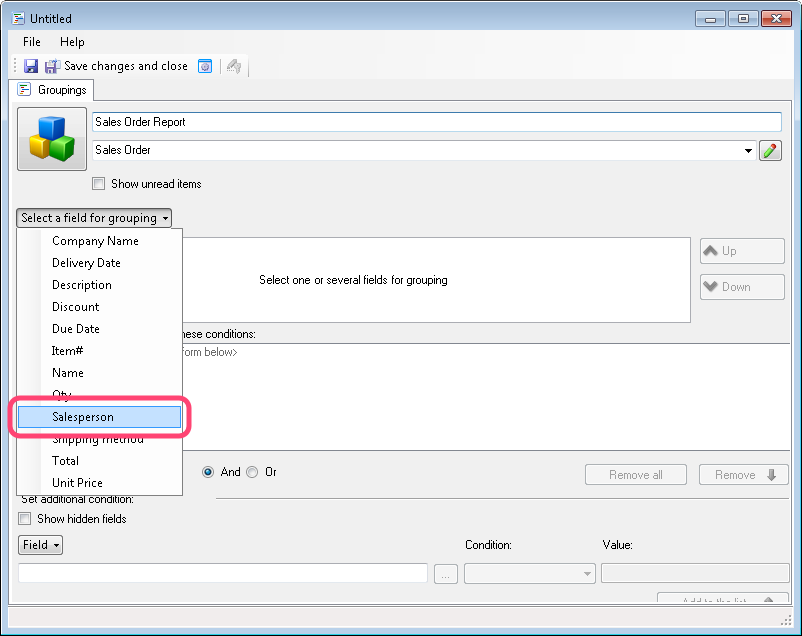
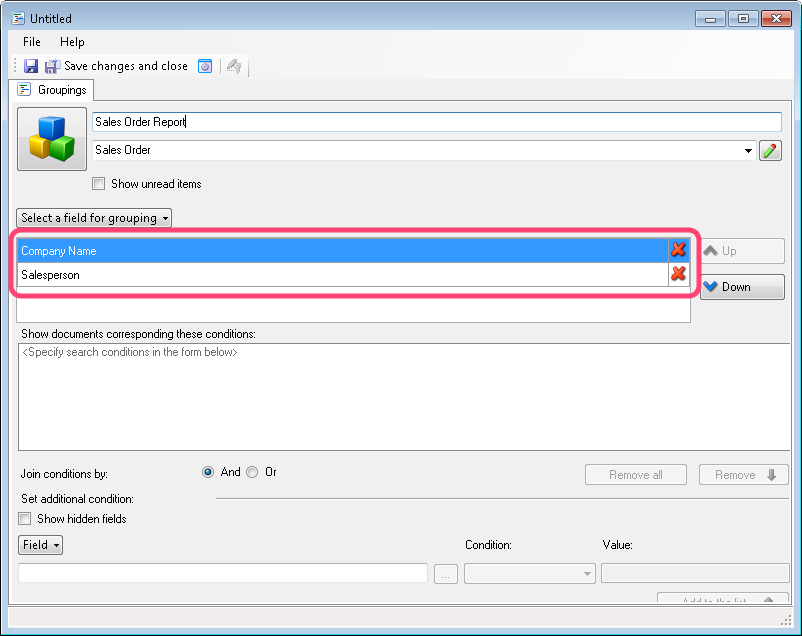
You can select any number of fields. In the example below, all documents grouped by the "Company name" field will be shown first, and documents grouped by the "Salesperson" field will be grouped and shown later. You can change fields grouping order by pressing "Up" and "Down" buttons.
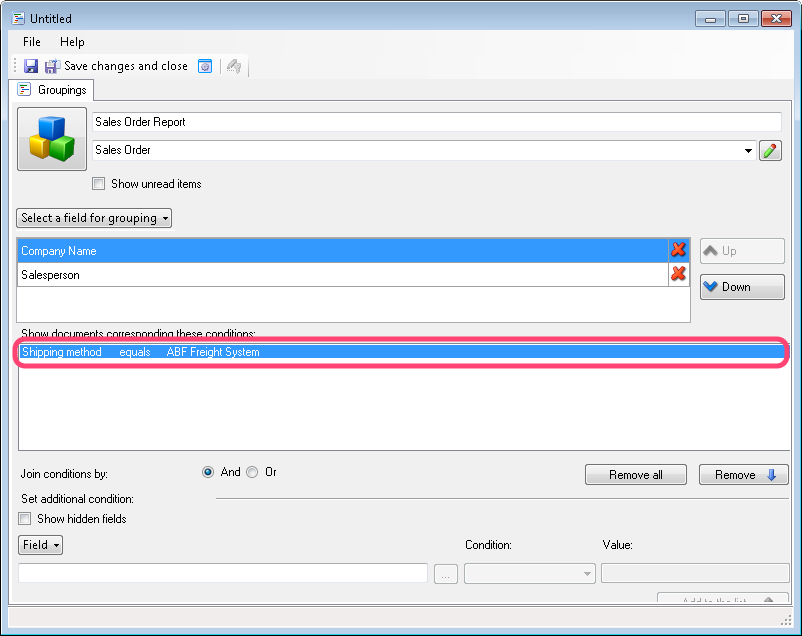
Also, in the same window, you can setup additional document filters using FossDoc search engine. For example, "Shipping method" = "ABF Freight System".
After saving the grouping you can review it on the "Groupings" tab.
The number of groupings that you can create is unlimited, i.e you can create an unlimited number of reports on any folders with any parameters.
Export Groupings to Excel
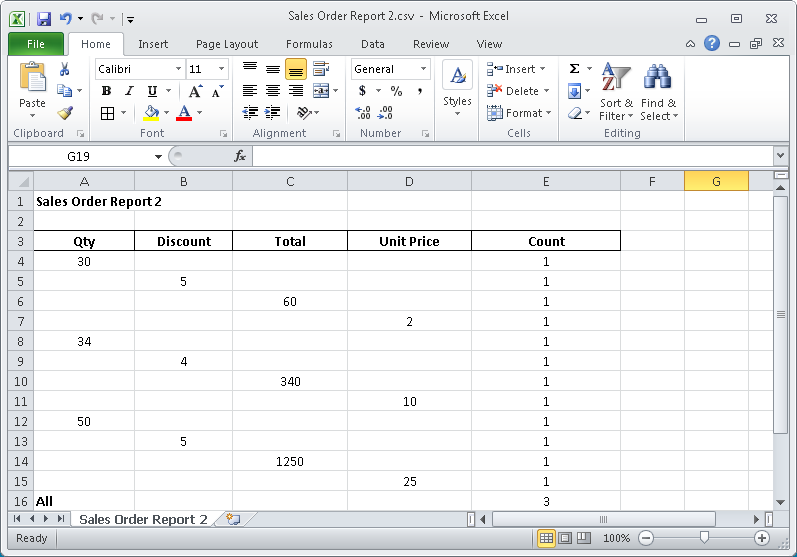
If necessary, it is possible to export the report into Excel table. To do this, click "Export to Excel"
 button. As a result you'll get the .csv file, which can be opened in Excel later.