Document Libraries

Technically speaking, document library is a set of document types, folders, dictionaries, and other objects. But for simplicity, you can think of it as a virtual analog of a file cabinet.
Document libraries allow you to design and store documents of any type and complexity. They also can help you to organize the exchange of documents between FossDoc servers, using import/export feature.
Typically, when creating your own business application, you define a set of fields and folders for future documents. In some cases a library itself can be a complete solution, or be a part of a bigger application.
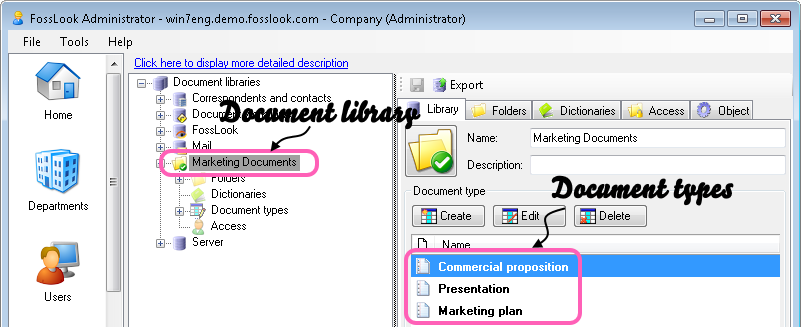
Creating a Document Library
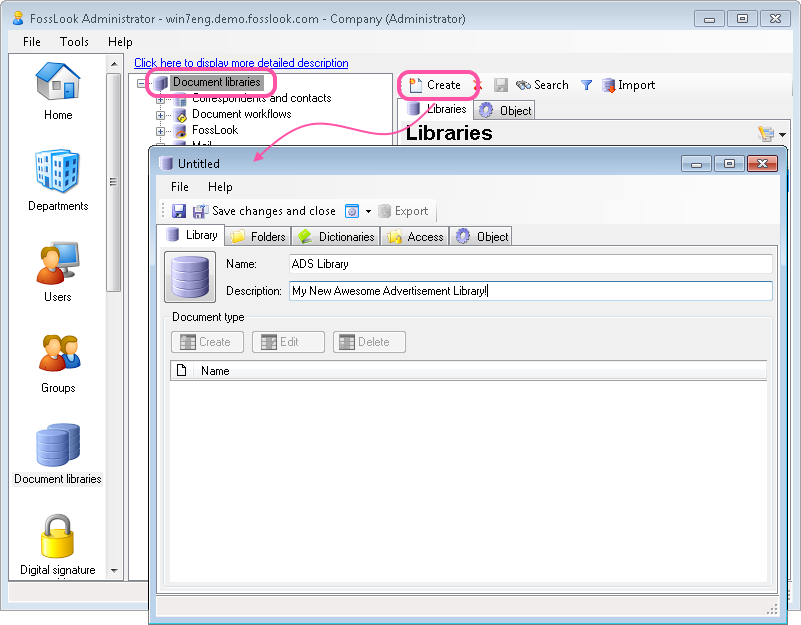
To create a library, open FossDoc Administrator, select “Document libraries" tree root and click “Create” button. You can also right click on the root of a libraries tree and select "Create New" - by default you'll see a library creation window.
Removing a Document Library
To delete a library, right click on it and select "Remove object", you'll see a warning dialog where you can make sure that you're deleting all dictionaries, document types and folders containing in the library.
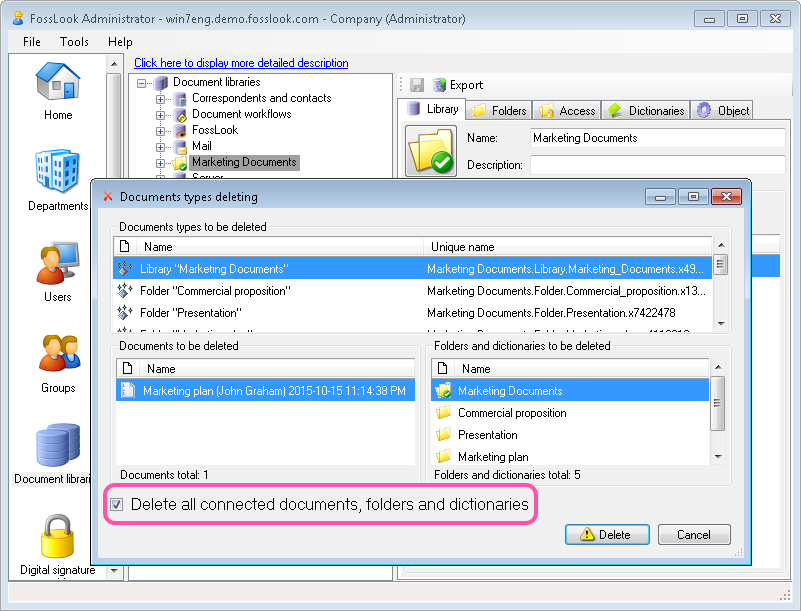
The option "*Delete all connected documents, folders and dictionaries *" correspondingly clears all things that were created with the library. If you don't select it, you won't be able to delete a library.
Exporting a Library
Quite often it's necessary to transfer a document from one server to another. Exactly for this purpose we created a new feature in FossDoc - Import/Export of a library. This function also can be used to quickly backup an important library, that you don't want to loose if something happens with the server.
All right, so, to export a library, select it in the libraries tree and click "Export" button located to the right.
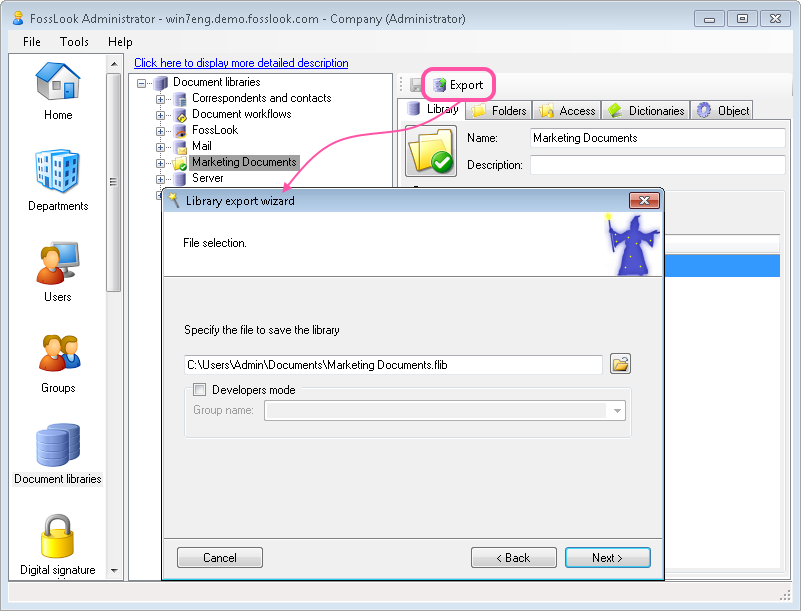
Next, you need to specify a file name and path where to save the library. If needed, you can include additional developer information such as "Categories names" into the library file, by enabling "Developer mode" option.
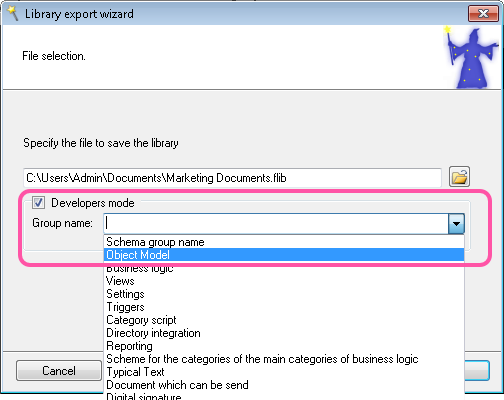
Once you've done that, click "Next", and your library will be exported to a specified location.
Note: Starting with version 6.4 when you export the library you also export the print templates created for the documents located in this library.
Importing a Library
Ok, now that you have a separate library file, you can try to import it on another FossDoc server. The import process looks just like the export. The system uses the same wizard for both import and export.
In the FossDoc Administrator select the document libraries root and click "Import" button located to the right.
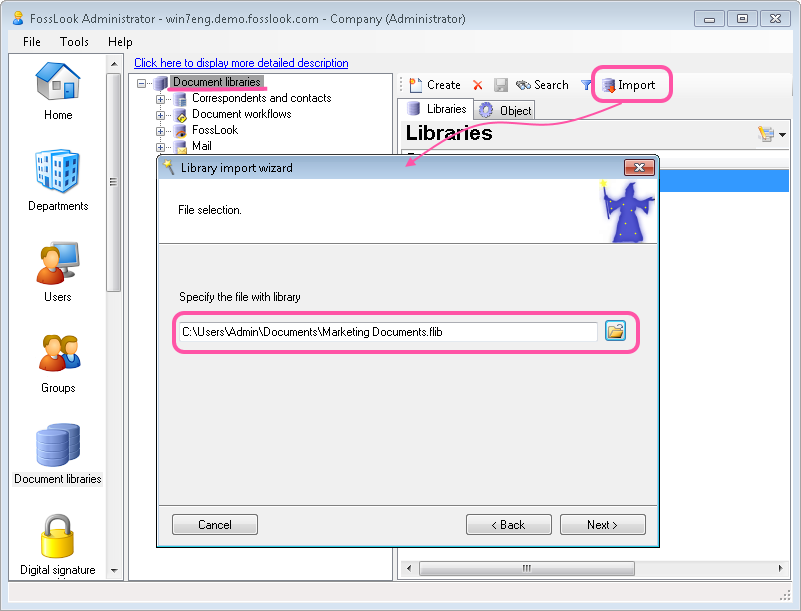
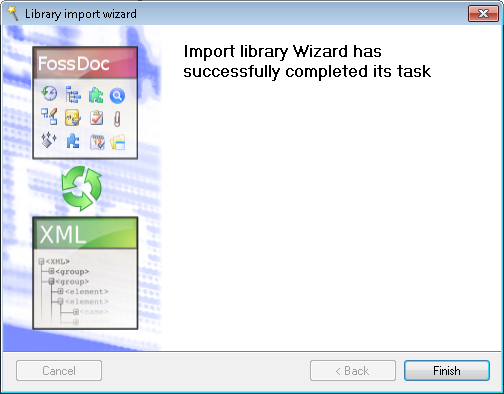
In the following doalog, select your library and click "Next" to start import process. After the process has finished you will see a success message.
Sample Libraries
To showcase the possibilities of the system, we have created a couple of Sample FossDoc Libraries for you to experiment with. You can download and import them into your FossDoc server.
Related articles
- What is Electronic Document Management?
- Document's card description
- FossDoc Field Types
- AutoComplete fields with default values
- Using Field Calculations in FossDoc
- Creating a Custom Document Type
- Linking Related Documents Together
- Linked documents
- Virtual folders
- Movement of the document
- Document Publication in FossDoc
- How to Use the Document Search
- How to Remove Document Libraries and Types