Document fields
Now let’s define the document’s fields. We assume that we need the following fields describing our accounts:
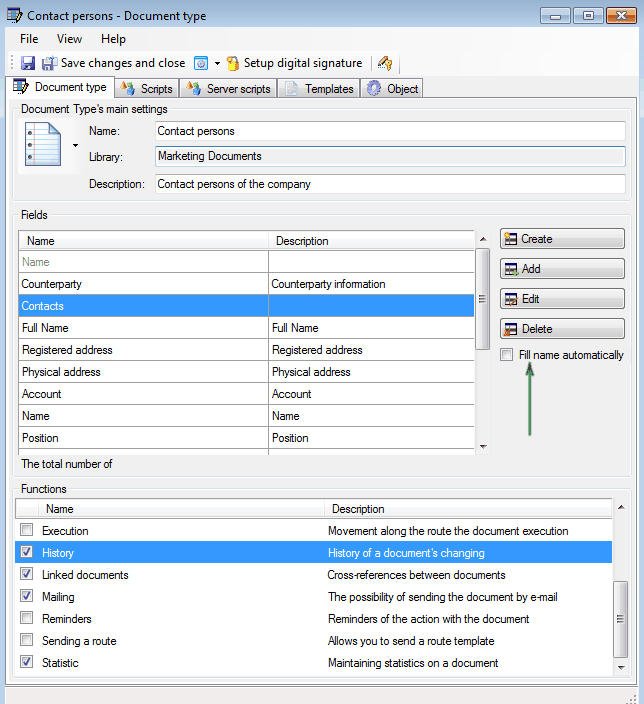
- **«Full Name» ** - type of fields String (indexed);
- **«Registered address» ** - type of fields String (indexed);
- **«Physical address» ** - type of field: String (indexed);
- **«Account» ** - type of field: String (indexed);
**«Coonterparty» ** - type of field: Subdocuments.
To create a field, click

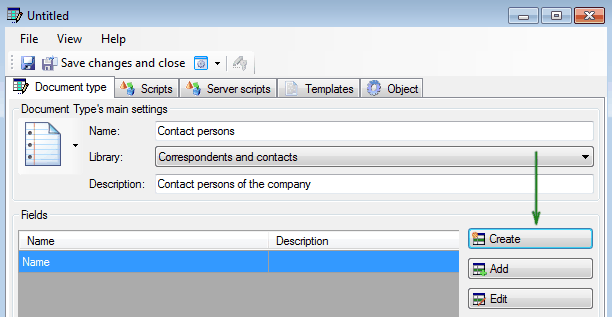
and create corresponding string field
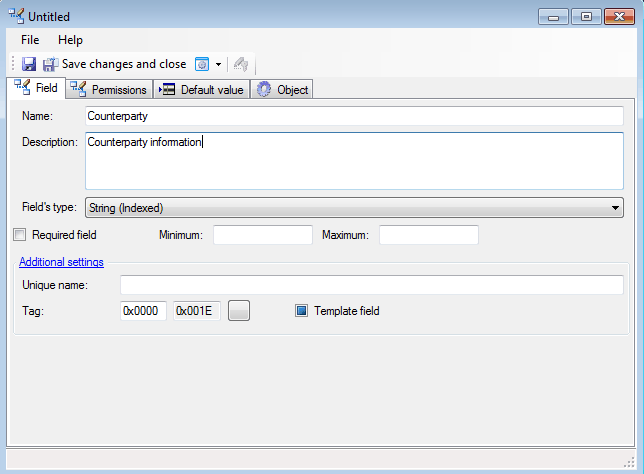
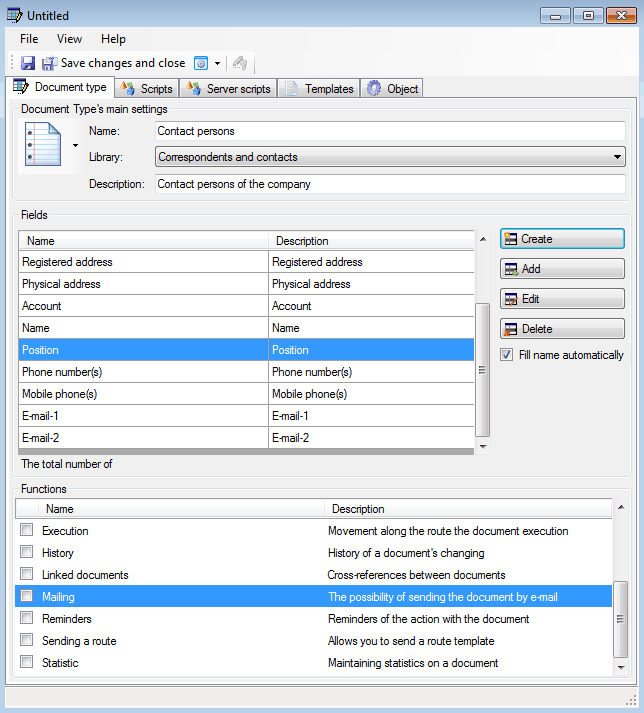
The field type “Counterparty” has a Subdocuments type. The point of this field is to link all the related documents that are placed in separate tabs to the main document. You can have an unlimited number of links, which is useful for us because a single account may have a lot of contact persons. In turn, the document type “Contact persons” will have its own fields. We assume that these fields are the following:
- «Name» - type of field – string (indexed);
- «Position » - type of field – string (indexed);
- «Phone number(s) » - type of field – string (indexed);
- «Mobile phone(s)»- type of field – string (indexed);
- «E-mail-1» - type of field – string (indexed);
«E-mail-2» - type of field – string (indexed).
Lets create the “Coonterparty” Subdocuments document type:
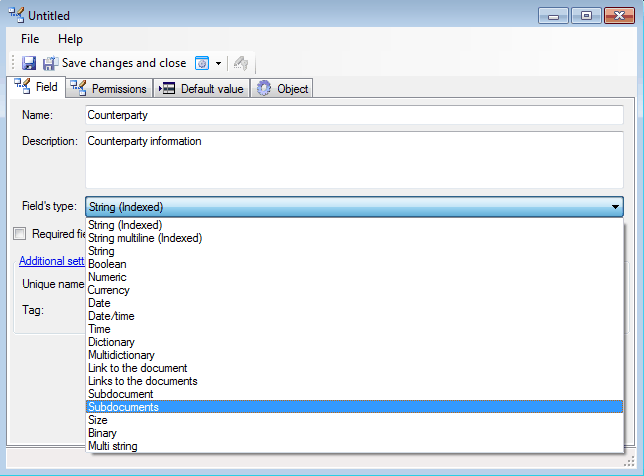
Next, click
 on the link from the “Contact persons” affiliated document.
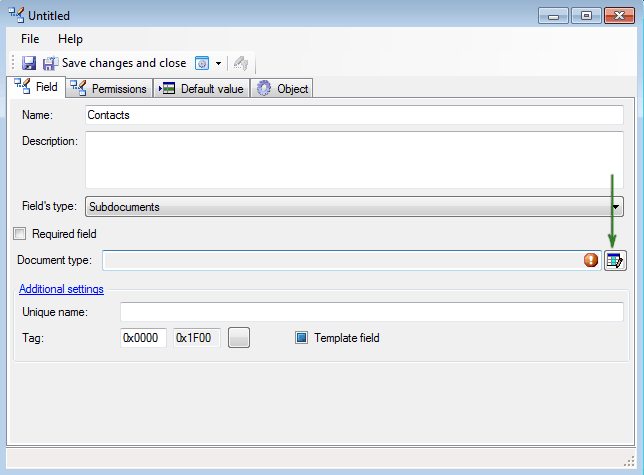
In general, this type of document may already exist within the system and can be selected, but in our case, it will have to be created. To do this, click

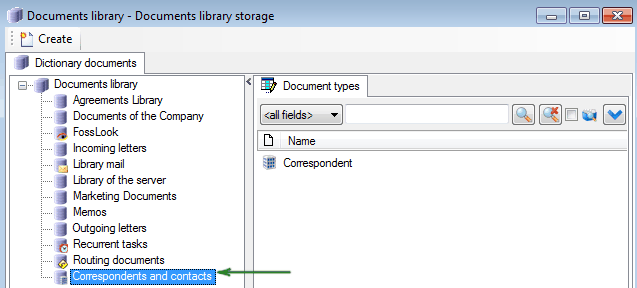
and create a “Contact persons” document type, adding appropriate fields,
then select it from the documents list as an affiliated document of Subdocuments type.
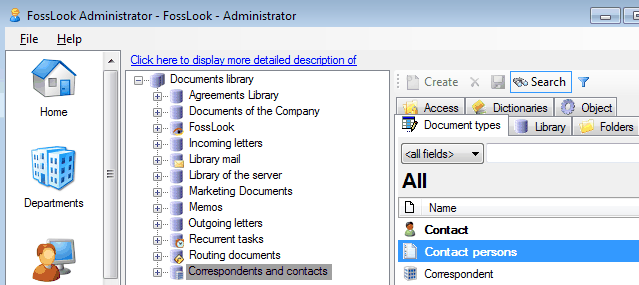
This way, we have created a “Coonterparty” affiliated document type. Next, we'll create a new document type "Correspondent" which will have following view:
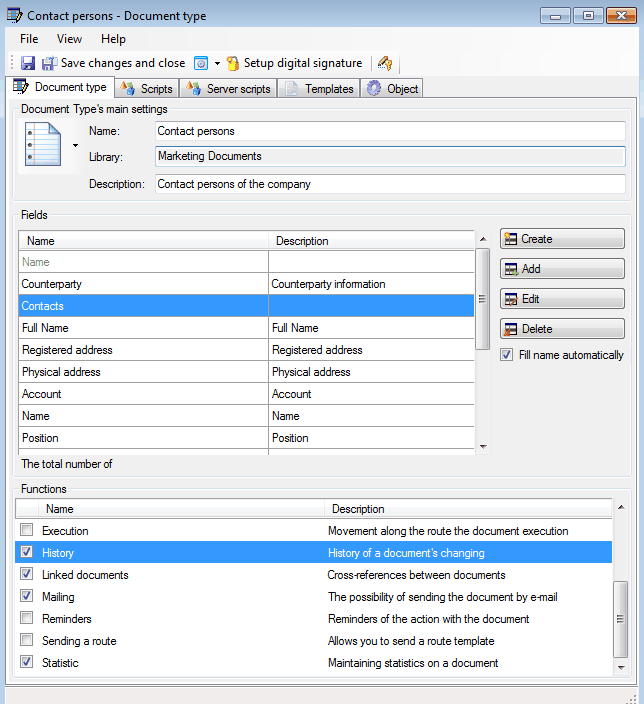
Considering that in the future we plan to use the records of Correspondents as links to documents, with the future document design, we need to remove the check in the box
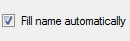 on the document type. The final version of our document type will be:
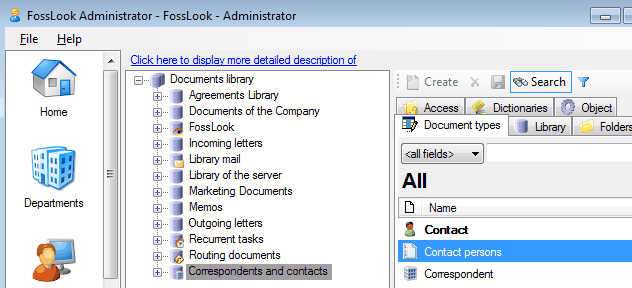
And the library itself will look as follows:
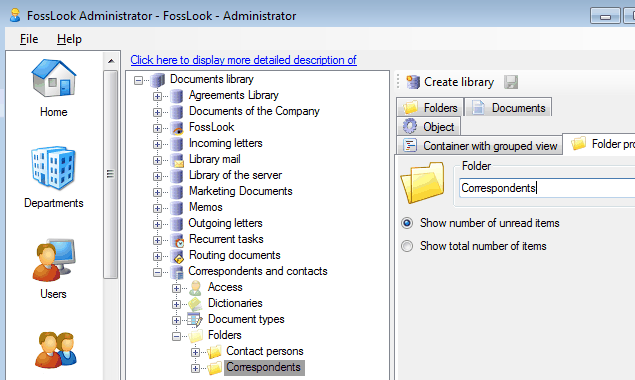
Thus, we have created document types “Correspondent” and “Contact persons”, and the system has created “Correspondent” folder, which name coincides with a name of document type for storage of these documents. The folder "Contact persons" was not created, since it is the affiliated document, and is does not require folder for its storage. "Correspondent" folder will store a set of records about Correspondents, not only one record. So, it's a good sense to rename it into “Correspondents”.
Configuring access rights to folders
Related articles
- How to Automate Your HR Department with FossDoc
- Customer Management with FossDoc
- Using FossDoc as a Database for Sociology Studies
- How to Use Document Assembly in Word and FossDoc
- Custom Business Solutions
- How to Manage Student Group Timetable with FossDoc
- Creating business application
- Defining solution boundaries for business applications
- Configuring access to folder
- Configuring access to folders
- Creating basic document type named “Marketing document”
- Creating of a document type
- Creating “Correspondents and contacts” warehouse
- Creating “Marketing documents” warehouse
- Creating of a documents library
- Customizing folder’s view
- Document functions
- Preparation of the document's route pattern
- Preparation of the route
- Testing the route
- Testing the solution
- Customizing folder’s view
- Using the mechanism of “Inherited document types”
- Using the mechanism of adding fields